Key takeaways
In our October 2026 test of three decks, PowerPoint Designer kept every word but works one slide at a time. Copilot in PowerPoint depended on the prompt and the deck: 22% of a report’s text kept in one run, all of a product deck’s in another.
- Designer: all text kept, one slide at a time, about 50 seconds to 1 minute per deck
- Copilot: 115 of 529 report words kept with “make new design”; every word of the product deck kept with “keep all text and graphics”
- Wonderslide: 11 of 12 report slides and 8 of 12 lecture slides came back, so check every slide
In our test on 30 September 2026, Copilot in PowerPoint kept about 22% of our report’s text (115 of 529 words) and removed both tables and the chart. On a simpler product deck, asked to keep all text and graphics, it kept everything. PowerPoint Designer works differently: it leaves your words alone and suggests layouts one slide at a time.
What is PowerPoint Designer? Designer is the built-in PowerPoint feature that suggests layout ideas for the slide you have selected. In current versions its button is labeled Design Suggestions.
What is Copilot in PowerPoint? Copilot is Microsoft’s AI assistant inside PowerPoint. It can summarize a deck, add slides, apply a new theme and, in Agent Mode, edit the presentation itself.
PowerPoint Designer vs Copilot: comparison table
| Feature | PowerPoint Designer (Design Suggestions) | Copilot in PowerPoint | Wonderslide |
|---|---|---|---|
| What it does | Suggests layouts for one selected slide | Summarizes, adds slides, applies a new theme, rewrites on request | Rebuilds the whole deck in one designer-made style |
| Works on an existing deck | Yes, slide by slide | Yes | Yes: upload PPTX, PDF or DOCX |
| Decks we ran | Report, lecture, product deck | Report, lecture, product deck | Report, lecture, product deck |
| Text kept in our test | 100% on control slides | About 22% on the report on 30 September, 100% on the rebuilt copy; 96% on the lecture and 100% on the product deck when asked to keep all text; 100% on the product deck with “Try a new design” | 98% of the report on 30 September, all but the chart slide on 16 October; about 54% on the lecture’s control slides; 100% on the product deck’s, but one list came back as a picture |
| Tables, charts, images | Kept every chart and table figure and rearranged the slide around them; turned lists into SmartArt on the report and lecture; added stock photos | Report: both tables and the chart deleted on 30 September, all kept on the rebuilt copy. Lecture: charts deleted, tables turned into plain text. Product deck: all charts, the table and images kept with both prompts | Report: tables and chart kept, chart labels removed; a second run dropped the chart slide. Lecture: four slides dropped, three turned into pictures. Product deck: table kept; two charts redrawn as shapes, one shows no lines; list and roadmap turned into pictures |
| Time in our test | About 50 seconds to 1 minute per deck | About 50 seconds to 3 minutes | About 2 to 4 minutes |
| Price | Free in PowerPoint for the web; in desktop PowerPoint, included with a Microsoft 365 subscription | Microsoft 365 Personal $9.99/month, Family $12.99/month, Premium $19.99/month; Copilot Business add-on from $18/user/month (promotional, list price $21, annual billing) | Editable PPTX for a single deck: $4.99, no subscription; pack of 5 $14.99; Week Pass $7.99 for 7 days; plans from $12.99/month; Free: 3 presentations a month, up to 10 slides, PDF; prices vary by region |
| Main limits | One slide at a time; doesn’t restyle charts; needs internet and a built-in theme; mixed styles across slides | Results depend on the deck: can cut text or delete charts; AI credit limits on Personal and Family | Can drop slides, turn lists and charts into pictures or shapes and drop chart labels, so check every slide |
Wonderslide is our product. We ran it through the same report, lecture and product deck, with the same checks.
Test results
Deck 1: Quarterly support report
- Copilot (Make new design): every word stayed, and both tables and the chart kept every figure. The chart stayed a native, editable chart with all value labels. Copilot restyled all 12 slides in one teal palette, numbered the agenda and list items, and pulled key figures such as 18,420 tickets and +12% into large callouts. It took about 2 minutes.
- Designer: every word stayed, and both tables and the chart kept every figure. It changed all 12 slides, turned two lists into SmartArt, added stock photos to two slides and a video background to the last one. It took about a minute.
- Wonderslide: the text and both tables stayed, but the whole chart slide was dropped, so the deck came back with 11 of 12 slides. It took about 3 minutes.
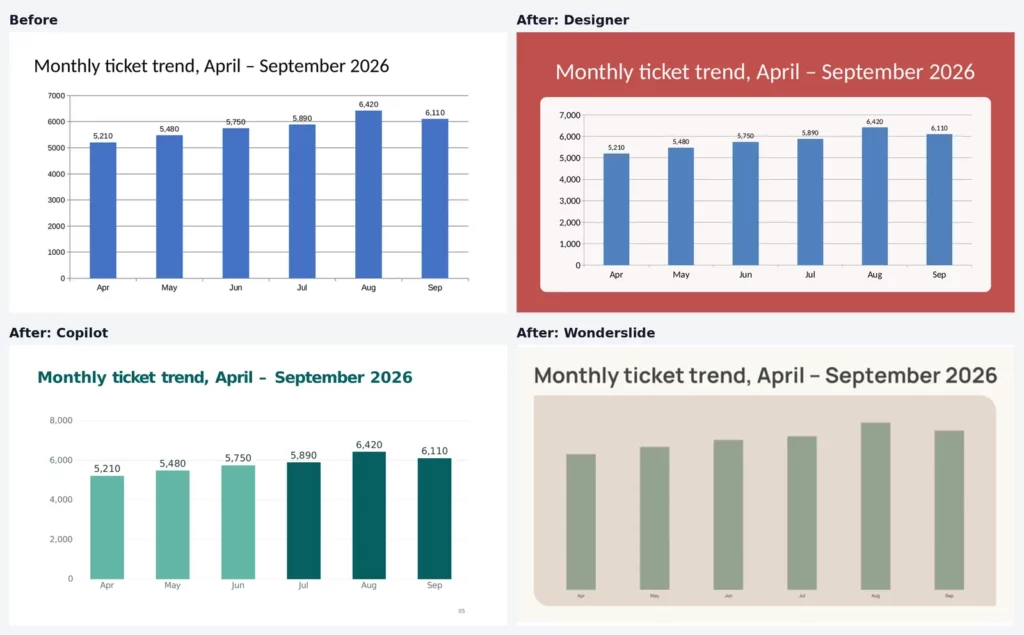
| Month | Tickets |
|---|---|
| Apr | 5,210 |
| May | 5,480 |
| Jun | 5,750 |
| Jul | 5,890 |
| Aug | 6,420 |
| Sep | 6,110 |
Deck 2: University lecture
- Designer: every word stayed, but only list and text slides changed. Five bullet lists became SmartArt diagrams, and on one slide the text in a hexagon cluster was too small to read. The deck took about a minute.
- Copilot (“make a PPT with a new design, keep all text and graphics”): it kept 96% of the words (499 of 518). But both tables became plain lines of text, and both charts were deleted, even though the prompt asked to keep graphics. It took about 3 minutes.
- Wonderslide: the lecture came back with 8 of 12 slides. The slides on the law of demand (our paragraph control slide), the coffee demand schedule, market equilibrium with its equations and price elasticity are gone. Three slides came back as pictures you can’t edit. The remaining text kept its wording, so about 54% of the control-slide words survived (120 of 223). It took about 4 minutes.
Deck 3: Product overview
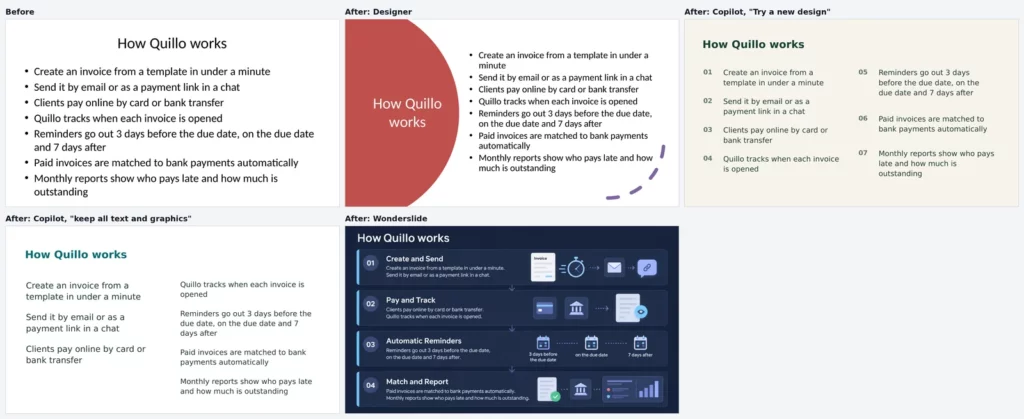
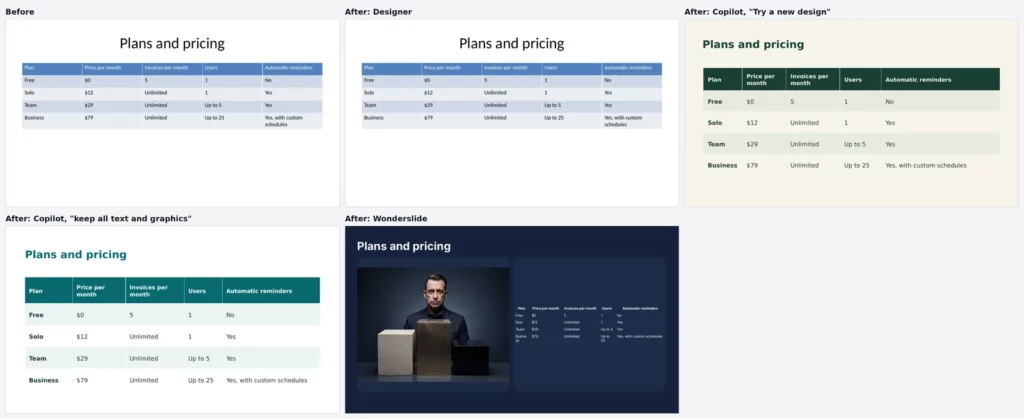
- Designer: all text on the control slides stayed. All three charts and the pricing table stayed as they were, and the table slide didn’t change at all. It added a stock photo to the title slide. The result mixed three different styles across slides. It took about 50 seconds.
- Copilot, “Try a new design”: every word on the control slides stayed. One line on the numbers slide was reworded. All three charts stayed editable with every value, and the table kept every figure in a new style. It took about 2 minutes.
- Copilot, “make a PPT with a new design, keep all text and graphics”: every word in the deck stayed, with no rewording. All three charts, the table and the three screenshots stayed in a new teal palette. It took about 2 minutes.
- Wonderslide: every word on the control slides is still there, but the seven-step list came back as one picture you can’t edit, regrouped into four steps. All figures and the table stayed, though table text shrank to 10 pt and three number labels were reworded. The line chart kept its data but shows no lines. The column and pie charts were redrawn as shapes, with month labels cut off and placeholder titles “column” and “pie” above them. The roadmap also became a picture, and two section slides were added. It took about 4 minutes.
How to use PowerPoint Designer
- Open your presentation in PowerPoint for Microsoft 365, or in PowerPoint for the web with the file saved in OneDrive or SharePoint. Stay online.
- Select a single slide.
- Click Design Suggestions. In PowerPoint for Mac we found it on the Home tab; Microsoft’s guide also shows it on the Design tab.
- Pick one of the layouts in the pane on the right. Your text stays the same, only the arrangement changes.
- Repeat on the next slide.
It doesn’t restyle charts, only the slide around them. On a 20-slide deck you also get 20 rounds of choosing, and our slides ended up in three different styles.
How to ask Copilot in PowerPoint to redesign without rewriting your text
Tell Copilot what must not change, but check the result: on our lecture deck it deleted both charts despite the prompt. Here’s what we saw with three prompts:
- “Try a new design.” Microsoft says this changes the theme of the whole presentation. On our product deck, the only prompt we ran it on, it kept the text, charts and table and reworded one line.
- “Make a PPT with a new design, keep all text and graphics.” Kept everything on the product deck. On the lecture, 96% of the words stayed, but both charts were deleted.
- “Make new design.” With no instruction about text, Copilot kept about 22% of the report’s words.
The same prompt gave different results on different decks. Check every slide afterwards.
PowerPoint Designer not working: common causes
According to Microsoft’s Designer troubleshooting page and its Designer guide, these are the usual reasons:
- No Designer button: in desktop PowerPoint you need a Microsoft 365 subscription. PowerPoint for the web offers design suggestions without one.
- Button is grayed out: you selected more than one slide, or you’re offline.
- No ideas in the pane: the slide uses a custom theme instead of a built-in one, or a layout other than Title or Title and Content.
- Still nothing: Microsoft notes that PowerPoint can’t show ideas in all circumstances. In our test, Designer offered nothing for lecture slides converted from PDF, where charts were drawn with shapes.
Which one to use
- Fix one slide fast: use Designer. It doesn’t touch your words.
- Restyle the whole deck and keep the text: try Copilot with “Try a new design” or an explicit “keep all text and graphics”. It handled our product deck well but cut the report’s text and deleted the lecture’s charts. Designer mixed three styles in one deck. A redesign tool like Wonderslide restyles everything in one pass, but in our test it dropped slides on the lecture and turned lists and charts into pictures or shapes. Whatever you use, compare every slide with your original.
- Shorten a long deck: use Copilot without an instruction about text. Cutting text is what it did on our report.
For more options, see our comparison of Gamma alternatives with editable PPTX export.
Designer, Copilot or a redesign tool?
Designer polishes single slides. Copilot can restyle a whole deck, but how much it keeps depends on the file. Wonderslide is a redesign tool, not a PowerPoint replacement: the result opens and stays editable in PowerPoint, and it’s worth a check slide by slide like any AI output.
See pricing for one-time purchases and plans. If your file is a PDF and you only need slides back in PowerPoint, use the free PDF to PPT converter.
How we tested
We reused the protocol from our test of AI redesign tools and ran three decks:
- Quarterly support report from our 30 September test: 12 slides, 529 words, two tables, one native chart and three images.
- University lecture: 12 slides with dense bullets, formulas, two tables and two graphs, built from text boxes and shapes, not native objects.
- Product overview for a fictional invoicing app: 12 slides, 329 words, three native charts, one table and three product screenshots. We built it for this test on PowerPoint’s default theme and layouts.
Copilot and Wonderslide results on the report come from our 30 September test, where Copilot got the prompt “make new design”. On 14 October we ran the lecture through Designer, slide by slide, and Copilot; Designer also got a version converted from PDF. On 15 October Designer ran on a copy of the report rebuilt with the same text, tables, chart values and images, and Designer and Copilot (two prompts) ran on the product deck. On 16 October Wonderslide (Pro plan) got the lecture, the product deck and the rebuilt report.
The Designer and Copilot runs on 14 and 15 October used PowerPoint for Mac (Microsoft 365 Personal, version 2609). Agent Mode wasn’t available on our plan.
We counted how many words survived on control slides: a paragraph, a long bullet list and a short bullet list on the report and lecture, and the paragraph and long list on the product deck (138 words). We also checked tables, charts and images, and timed each run. One run per tool and prompt is our test, not a benchmark.
Full results, data and method: wonderslide.com/blog/ai-redesign-existing-powerpoint
Limitations
- We tested three decks, so your file may behave differently.
- Each tool ran once per deck, except Wonderslide on the report, which ran twice with different results, and Copilot on the product deck, which ran once per prompt.
- Designer got a rebuilt copy of the report, not the exact file from 30 September.
- We built the product deck ourselves on PowerPoint’s default theme. Real decks are often messier, which may make the built-in tools look better here than on your file.
- Copilot features change fast. We tested PowerPoint for Mac (version 2609) on 14 and 15 October 2026 and reused report results from 30 September.
- We judged design quality ourselves, which is subjective.
- We didn’t test PowerPoint for Windows, the web or mobile.
Sources
- Microsoft Support: Create professional slide layouts with Designer (October 2026)
- Microsoft Support: Designer not working (October 2026)
- Microsoft Support: Welcome to Copilot in PowerPoint (October 2026)
- Microsoft Support: Copilot in PowerPoint (October 2026)
- Microsoft 365 Copilot pricing for individuals (October 2026)
- Microsoft Copilot for business: plans and pricing (October 2026)
- Microsoft Support: AI credits and limits for Microsoft 365 subscriptions (October 2026)
- Office Watch: Copilot Agent Mode in Word, Excel and PowerPoint (October 2026)
FAQ
Does Copilot redesign existing slides?
Yes, but results vary. With “Try a new design”, Copilot restyled our whole product deck and kept every word on the control slides, all charts and the table. On our report, the prompt “make new design” also shortened the content: Copilot kept about 22% of the words and removed both tables and the chart.
Is PowerPoint Designer free?
Yes, in PowerPoint for the web. Microsoft says design suggestions there are available to everyone for files saved in OneDrive or SharePoint. In desktop PowerPoint, only Microsoft 365 subscribers get them. Either way you need an internet connection, because the layout ideas come from Microsoft’s online service.
Why is Designer not showing in PowerPoint?
The most common reasons are no Microsoft 365 subscription in desktop PowerPoint, no internet connection, several slides selected at once, a custom theme, a layout other than Title or Title and Content, or extra shapes on the slide. Select one slide, switch to a built-in theme and try again.
Can Copilot keep my text?
Often, if you ask. A prompt to keep all text and graphics kept every word of our product deck and 96% of our lecture, though on the lecture both charts were deleted. In our 30 September test, the prompt “make new design”, with no instruction about text, kept about 22%. Compare every slide with your original.
How much does Copilot in PowerPoint cost?
For home users, Copilot comes with Microsoft 365 Personal ($9.99 a month), Family ($12.99, Copilot for the subscription owner only) and Premium ($19.99), with AI credit limits on Personal and Family. For businesses, the Copilot Business add-on is $18 per user per month on annual billing until 31 December 2026, then $21.
Can I redesign a whole presentation without losing my text?
You can keep most of your text, but check the result. Copilot’s “Try a new design” kept our product deck intact, but other prompts cut text or deleted charts. Designer keeps text but works slide by slide. Wonderslide restyles a full deck in one pass, yet it dropped four of 12 lecture slides.