Key takeaways
In Wonderslide’s test of three PDFs (6 and 7 October 2026), an AI PDF editor gave every file a consistent new look in under five minutes, but one figure went missing and one was misread.
- Four runs took between 2 min 57 s and 4 min 36 s.
- Preserve exact structure keeps your text as is. Improve and refine structure merged a 12-slide lecture into 10 slides.
- For a single typo, a classic PDF editor such as iLovePDF or Acrobat Pro is enough.
- Compare every slide with the source PDF before you send the deck.
How to edit a PDF presentation with an AI PDF editor: the short answer
You don’t have to fix a PDF presentation letter by letter in a PDF editor. With an AI PDF editor built for slides, you can change the text, the images and the whole design, then download the deck again as a PDF.
Here is how to do it in Wonderslide:
- Upload your PDF presentation.
- Answer a few quick questions, including how much to change: keep your text as is or let the AI rework it.
- Wait roughly three to four minutes while Wonderslide matches a design to your content and rebuilds the slides.
- Fix anything in the online editor, then download the result as a PDF or an editable PPTX.
What is an AI PDF editor for presentations?
An AI PDF editor for presentations is a tool that reads the slides inside a PDF and rebuilds them as editable slides. A regular PDF editor changes characters and objects on a fixed page. An AI PDF editor understands each slide’s content, so it can restyle the whole deck in one consistent look and let you edit the result like a normal presentation.
This guide is for anyone with a PDF deck to update, such as a Canva or PowerPoint export, a lecture or a report, and no original PPTX.
AI PDF editor vs. classic PDF editor: which fits your task
To fix one word, a classic PDF editor is enough. To restyle the whole deck, you need a tool that rebuilds the slides.
| Tool | Free? | Keeps the original layout? | Can change the design? | Download as |
|---|---|---|---|---|
| Adobe Acrobat | Free online tools add text boxes and comments; editing existing text needs Acrobat Pro (7-day trial) | Yes, edits stay in place | No, one object at a time | |
| Canva | PDF import works on the free plan | Mostly; some layouts shift after import | Yes, manually, element by element | PDF, PPTX and more |
| Smallpdf | Free account adds text, images and drawings; editing existing text is a Pro feature (7-day trial) | Yes | No | |
| iLovePDF | Online editor is free with usage limits; Premium removes them | Yes | No | |
| PowerPoint | Needs a Microsoft 365 or Office license | No direct PDF import; PDF content goes in as a picture or object, not as editable slides | Only after conversion | PPTX, PDF |
| Google Slides | Free | No direct PDF import; it imports presentation files such as PPTX, so convert a PDF first | Only after conversion | PPTX, PDF |
| Wonderslide | Free plan: 3 presentations a month, up to 10 slides, non-commercial use. A single deck is $4.99 with no subscription (prices vary by region) | You choose: keep your text as is or let the AI rework it | Yes, the design is matched to your content and applied to every slide | PDF on all plans, editable PPTX on paid plans |
For PowerPoint or Google Slides, convert the file first with the free PDF to PPT converter.
How to edit a PDF with AI in Wonderslide, step by step
You don’t need the original PPTX or any design skills.
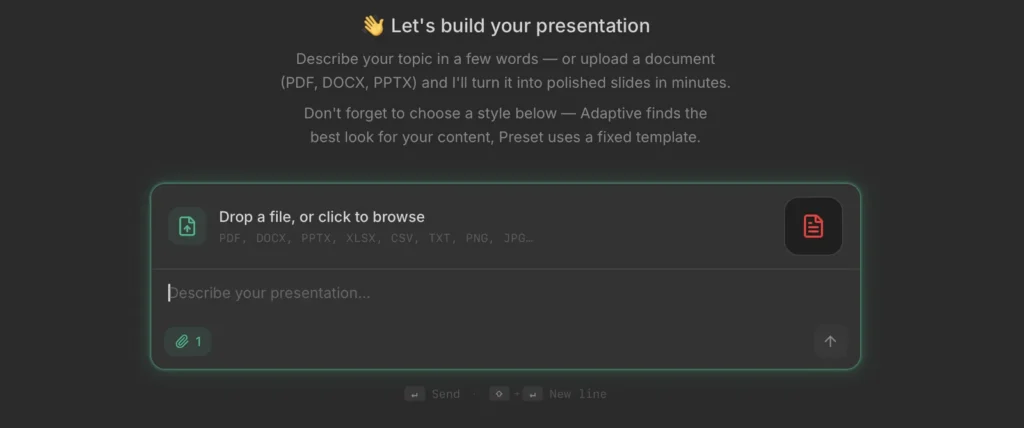
Step 1: Upload your PDF
Go to Wonderslide and upload the PDF. Wonderslide also accepts DOCX, PPTX, XLSX, CSV, TXT and images. Below the upload box, choose a style: Adaptive picks a look that fits your content, and Preset uses a fixed template.
Step 2: Answer a few quick questions
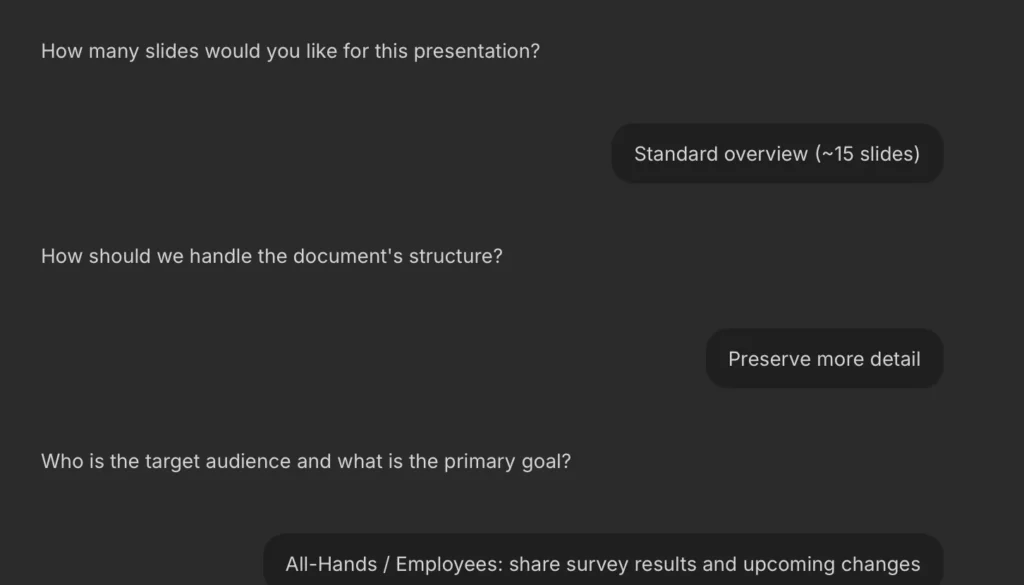
Before it builds the deck, Wonderslide asks you a few questions, including how much to change your content. In our test, it asked how many slides we wanted, how to handle the original structure, and who the audience was. The options adapt to the document. For our lecture, the structure options were Preserve exact structure, Improve and refine structure (recommended) and Use as reference.
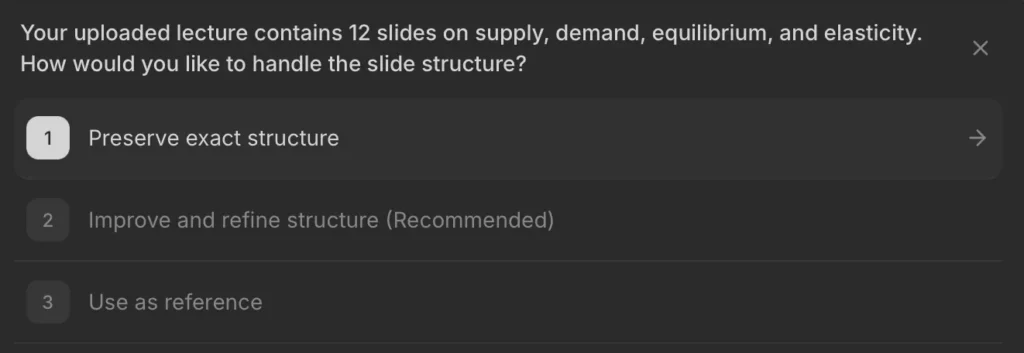
To keep your text as is, preserve the structure. This fits content that’s already approved when you only want a new design. Let the AI improve the structure if the slides are overloaded, outdated or written for a different audience.
Step 3: Review the new version
With the Adaptive style, Wonderslide picks the design for you, based on your content and audience. According to Wonderslide, it chooses from 40+ styles made by professional designers, and the same style applies to every slide. That’s why the deck doesn’t get the recognizable “AI look” that many generated presentations share.
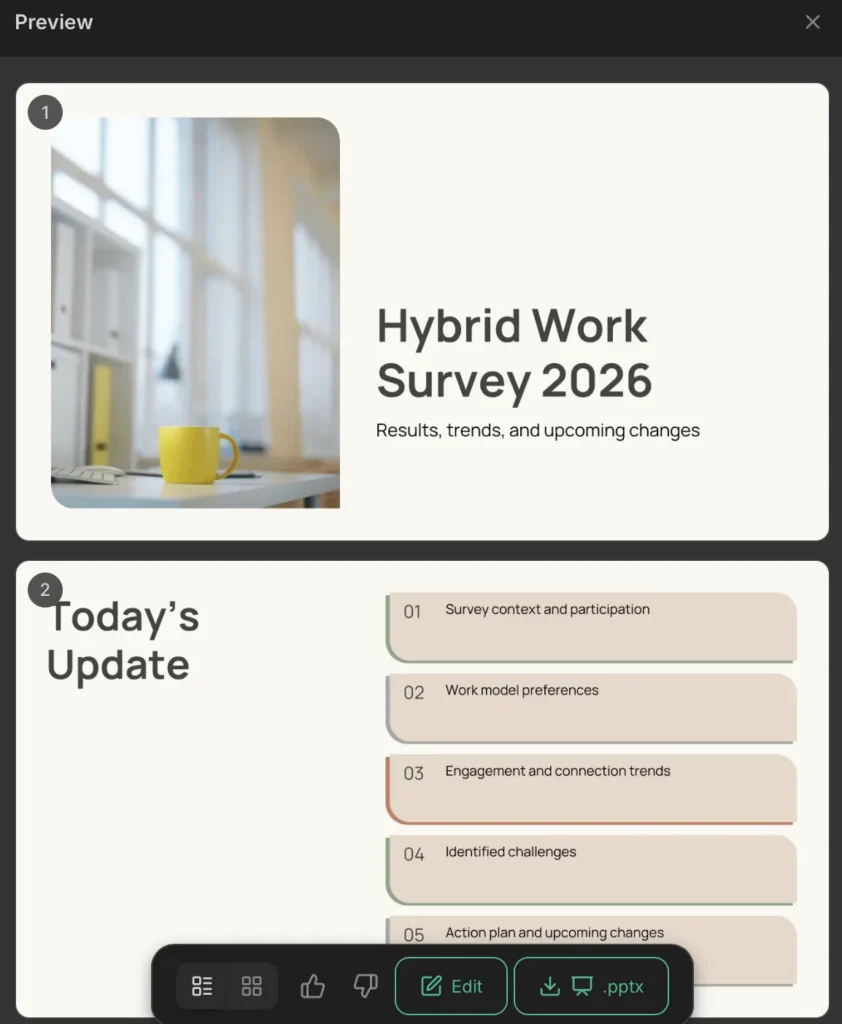
From the finished deck you can open the editor, download a file or share a public link that opens in any browser without sign-up.
Step 4: Edit PDF slides in the online editor
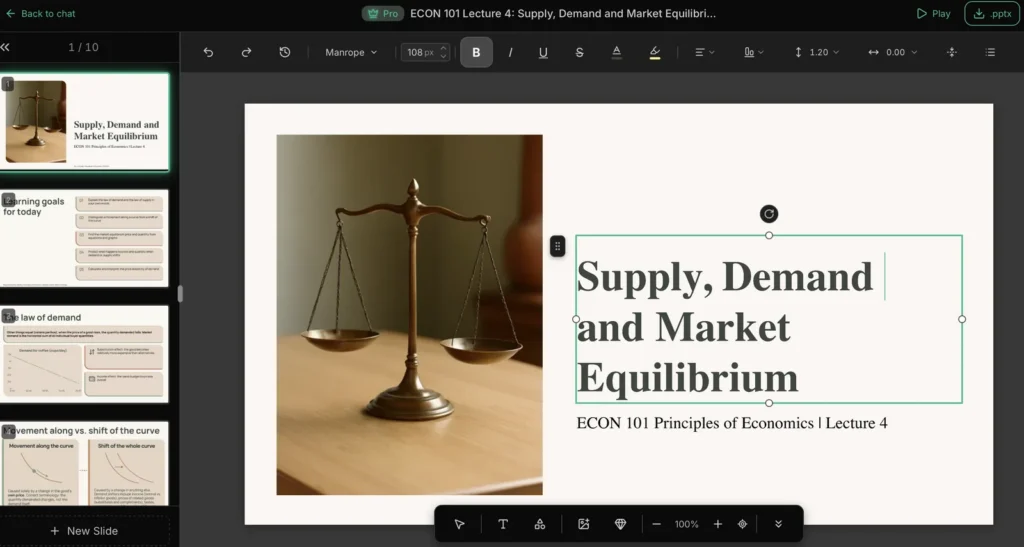
Open any slide in the online editor, right in your browser. You can rewrite text, change the font, size, color and alignment, and format text in bold, italics or lists. You can move, replace or delete pictures, upload your own from your computer, add a new slide and change the slide order. Undo and version history let you step back. This is where you fix a typo or update a figure without touching the rest of the deck.
Step 5: Download as PDF or PPTX
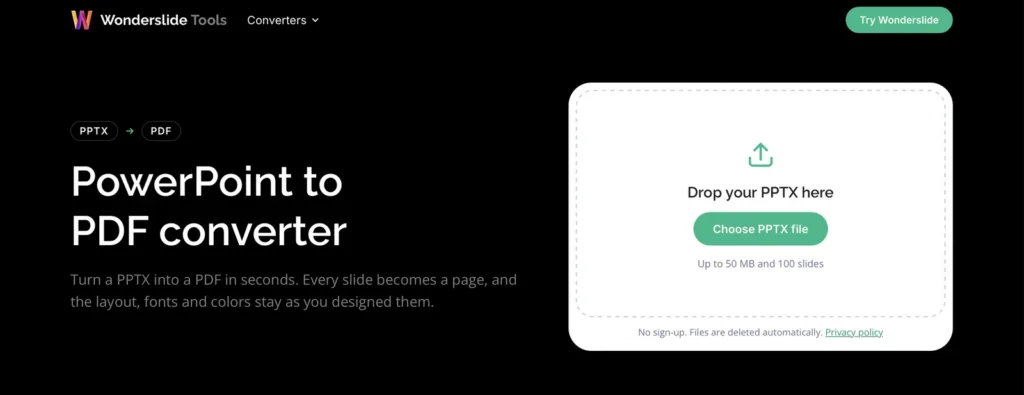
Download the finished deck as a PDF on any plan, including Free. On paid plans you can also download an editable PPTX that opens in PowerPoint, Keynote and Google Slides. The free PPT to PDF converter turns a PPTX back into a PDF.
Test results on 3 different PDFs
Test 1: A presentation exported from Canva
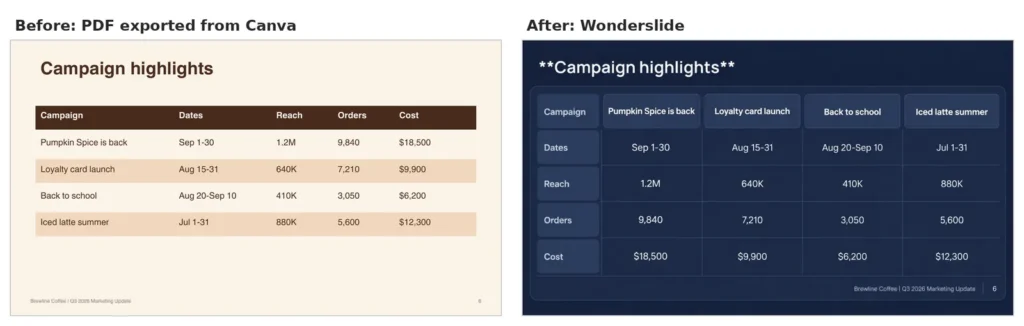
- Source: a 10-slide quarterly update exported from Canva, with KPI cards, two charts, a table and a timeline. Canva’s export glued a few words together (“BrewlineCoffee”).
- Setting: preserve the structure. Generation took 3 min 18 s.
- What worked: all 10 slides kept their order in one consistent style. The campaign table was rebuilt with every figure correct, the customer feedback slide became an illustrated infographic, and both Canva charts were reused. A typo we left on purpose stayed in place, as it should when you preserve the structure.
- What didn’t: this was the weakest result in our test. On the KPI slide, the $412K revenue figure disappeared and the other numbers landed in one card. On the Q4 timeline, “app redesign” moved from December to January and “Q4 review” from January to December. The budget slide put the footer into content cards, both charts came out on a black background, and some titles showed literal asterisks instead of bold text.
Test 2: A lecture with dense text and graphs
- Source: a 12-slide economics lecture with dense bullets, formulas, graphs and tables.
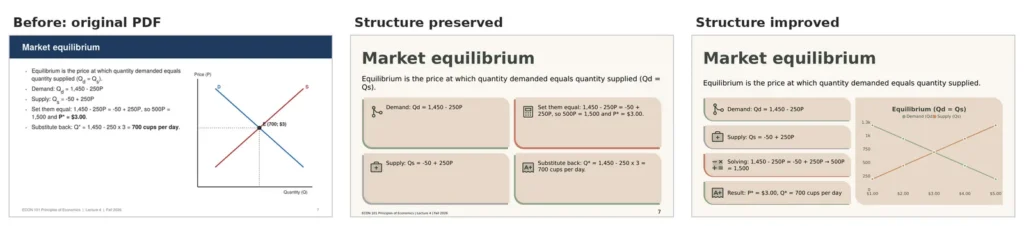
- Setting: we ran it twice. Improve and refine structure took 3 min 8 s, and Preserve exact structure took 2 min 57 s.
- Preserve exact structure: all 12 slides kept their order, and the numbers and formulas were intact. A table turned into a plain list, two of three graphs were dropped or replaced with a photo, and the asterisk issue showed up on five slides.
- Improve and refine structure: 10 slides instead of 12. Related slides were merged, and the demand and equilibrium graphs were rebuilt from the numbers. It reads better, though a few secondary details were cut.
Test 3: A PDF report turned into a presentation
- Source: a 6-page survey report with long paragraphs, tables and charts.
- Setting: about 15 slides, Preserve more detail, audience: an all-hands meeting. Generation took 4 min 36 s.
- What worked: a 15-slide deck with an agenda and three sections. Both charts were reused, the team table became an infographic with correct figures, and the recommendations became a timeline with the right dates.
- What didn’t: one slide misread a figure. It said team connection had recovered to 6.9 “for tenured employees”, while 6.9 is the overall score.
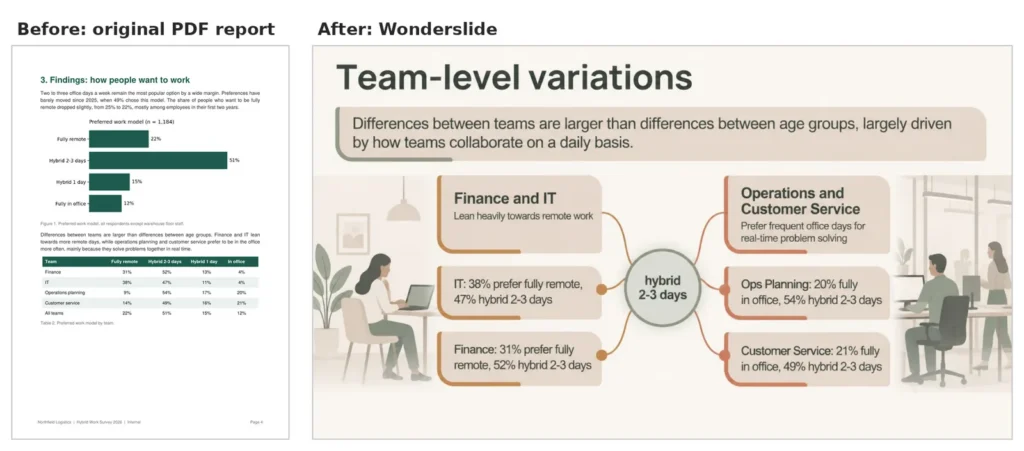
Editing and export
In our test, the PPTX text was editable in PowerPoint, but infographic slides were exported as single images, so edit their text in Wonderslide first.
Verdict: for a full redesign, an AI presentation editor is a better fit than a classic PDF editor. All three files got a consistent new look in under five minutes. Most numbers held up, but one figure went missing and one was misread, so compare every slide with the source before you send the deck.
Common PDF presentation edits and how to handle them
Fix a typo or edit PDF text and numbers
For a typo or two, a classic PDF editor is enough. iLovePDF lets you edit PDF online free, and Acrobat Pro edits PDF text in place. If the fix touches several slides or a chart, preserve the structure in Wonderslide and correct the figures in the editor.
Refresh outdated slides
Choose to improve the structure so the AI tightens the text, then update the facts in the editor.
Redesign a PDF presentation in your own style
Wonderslide applies one consistent style to the whole deck, so a colleague’s presentation or a Canva template stops looking borrowed.
Turn a PDF report into a presentation
Upload the report and let the AI turn the document into a deck with slide-sized points. If you only need the pages as slides, use the PDF to PPT converter or see our comparison of PDF to PPT converters.
Edit your PDF presentation without starting over
When a deck needs new wording, a new look or both, an AI PDF editor for presentations saves you from rebuilding it slide by slide.
See pricing for paid plans and one-time purchases. If your source is a PPTX rather than a PDF, see how to redesign a presentation while keeping its content.
How we tested
According to Wonderslide usage data, about a third of the PDFs users upload are presentations, and most of them download the result as a PDF again. So we made three typical files with fictional data: a 10-slide marketing deck exported from Canva, a 12-slide lecture and a 6-page report.
On 6 and 7 October 2026 we uploaded each one on a paid plan, because the lecture is longer than the Free plan’s 10-slide limit. We used the Adaptive style and timed each run from start to finished deck. Then we compared every slide with the source PDF: text, numbers, charts and tables.
Sources
- Adobe Acrobat: free online PDF editor (October 2026)
- Canva Help Center: Import and edit PDFs (October 2026)
- Smallpdf: Edit PDF (October 2026)
- iLovePDF: advanced PDF editor (October 2026)
- Microsoft Support: Insert PDF content into PowerPoint (October 2026)
- Google Workspace: Get started with Slides (create or import a presentation) (October 2026)
FAQ
Which AI PDF editor should I use for presentations?
It depends on the job. For a typo or one changed number, iLovePDF or Acrobat Pro is enough. To change the design of a whole PDF presentation, use an AI tool that rebuilds the slides, such as Wonderslide. It keeps your structure if you ask it to and applies one style to every slide.
Can I edit a PDF presentation for free?
Yes, within limits. The Wonderslide Free plan gives you 3 presentations a month, up to 10 slides each, with PDF download and a non-commercial license. A single deck costs $4.99 with no subscription, and prices vary by region. Free tiers of Acrobat and Smallpdf let you add text boxes, but editing existing text needs a paid plan.
How do I change the design of a PDF?
To edit PDF design across a whole deck, upload the PDF to an AI PDF editor that works with slides and preserve the structure. Wonderslide then applies a new design to every slide, and you can adjust details in the editor. In Canva you can restyle an imported PDF too, but by hand, element by element.
Will my text stay the same?
Yes, if you want it to. Wonderslide asks how much to change, and you can keep your text as is by preserving the structure. In our test, most numbers and wording stayed the same, but a few long points got shorter, one figure was misread and one went missing. Check the result and fix any word in the online editor.
Can I download it back as a PDF?
Yes. Every plan, including Free, lets you download the edited presentation as a PDF. You can also download an editable PPTX for PowerPoint, Keynote or Google Slides, so you can keep working on the deck in the app you already use.
How do I convert a PDF presentation to PowerPoint?
For a quick PDF to PowerPoint presentation conversion, use a PDF to PPT converter such as the free PDF to PPT tool, then open the PPTX in PowerPoint. PowerPoint can insert PDF content as a picture or object, but that does not turn the PDF into fully editable slide content.