Creating a compelling presentation can be time-consuming and challenging. From structuring content to designing slides, the process requires effort, creativity, and clarity. Fortunately, AI tools like ChatGPT can streamline the process by helping generate ideas, structure content, and even refine wording.
With remarkable speed, ChatGPT can transform an idea into a professional presentation deck, summarizing key messages into clear bullet points for each slide. AI tools like ChatGPT are also increasingly used in education to enhance learning experiences and streamline the creation of academic presentations.
In this article, we’ll explore how ChatGPT can assist in presentation creation, provide a step-by-step guide, and discuss the potential challenges of relying solely on AI.
Why ChatGPT is Helpful for Creating Presentations
- Saves Time – ChatGPT can quickly generate outlines, suggest key points, and draft text, allowing users to focus on refining content rather than starting from scratch.
- Enhances Clarity – AI helps rephrase ideas concisely and effectively, making presentations more engaging and easy to understand. ChatGPT can also summarize complex information into short, clear bullet points, improving the clarity of your slides.
- Offers Creativity Boost – ChatGPT provides unique ideas, relevant examples, and different perspectives that can improve the quality of a presentation.
- Improves Structure – AI can suggest logical content flow, ensuring the presentation is coherent and well-organized. By describing your topic, audience, and tone to ChatGPT, you can receive a more tailored outline that fits your specific needs.
Choosing a Presentation Platform
Want to try this on your own deck?
Selecting the right platform is a key step in creating professional presentations that stand out. With a variety of options available, such as PowerPoint, Google Slides, and AI-powered presentation makers, it’s important to choose a platform that fits your workflow and goals. If you’re already familiar with PowerPoint, using an AI PowerPoint generator like Twistly can be a smart move, as it works directly within the PowerPoint environment and allows you to generate slides, speaker notes, and templates without leaving the app. For those who prefer a more streamlined, web-based experience, platforms like Wonderslide, SlidesAI or Beautiful.ai offer seamless access to AI-generated presentation slides, outlines, and engaging visuals.
When making your choice, consider factors like compatibility with your existing files, the ability to customize templates, and the ease of creating and editing slides. Some platforms excel at helping you generate speaker notes and professional presentations quickly, while others focus on providing a wide range of visuals and design options. Ultimately, the best platform is the one that supports your creative process, lets you customize your presentation, and helps you deliver engaging, professional results.
Step-by-Step Guide to Using ChatGPT for Presentation Creation
Now we will guide you through the steps of crafting a winning presentation with the help of ChatGPT.
Step 1. Define Your Topic and Audience
Before using ChatGPT, clearly define your presentation’s purpose, target audience, and key message. This critical step will have a great impact on the final product, and you need to take it with or without its help.
To get the most relevant presentation outline from ChatGPT, describe your topic, audience, and desired tone when prompting the tool.
Example: If your topic is “The Importance of Wildlife Conservation” for high school students, your main goal might be to educate them on the significance of biodiversity and participating in conservation practices.
Your language should be friendly and well-balanced: not too simple as high school students have enough knowledge to understand some scientific terms and concepts and engaging enough to catch and keep the attention of teenagers.
Step 2. Generate an Outline
Use ChatGPT to create an outline by providing prompts such as: “Generate a presentation outline on wildlife conservation for high school students.”
Example Output:
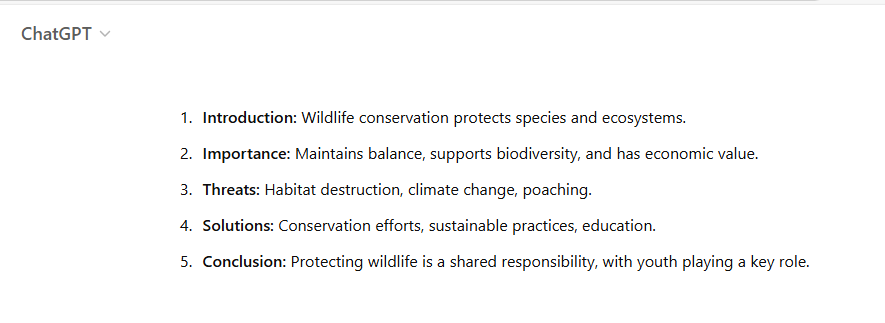
You can use ChatGPT to summarize research findings or content from PDF files, and then paste the outline into your preferred presentation tool.
Step 3. Develop Slide Content
Request slide-by-slide content with prompts like: “Write slide content for a presentation on wildlife conservation with five slides.”
You can also ask ChatGPT to generate bullet points for each slide to improve clarity and highlight key messages.
Example Output for the first 2 slides:
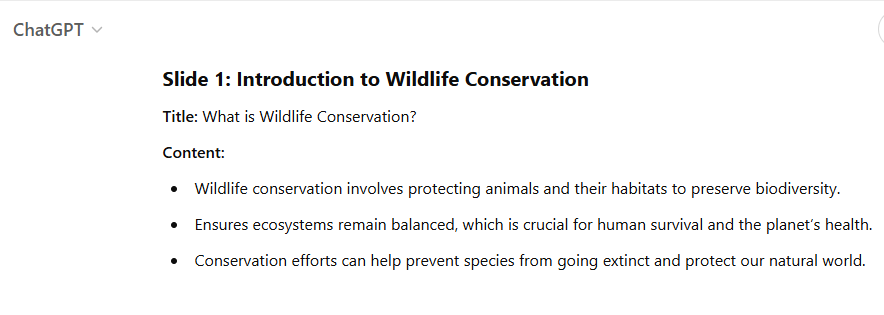
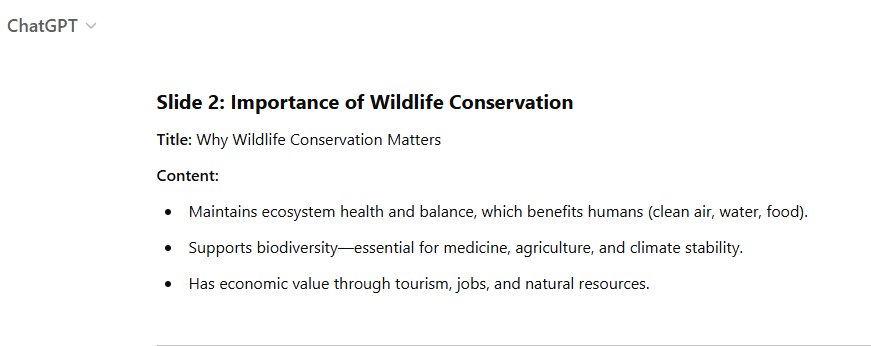
You can request specific layout suggestions for your slides, or ask ChatGPT to help structure your content as a story. ChatGPT can also assist in generating content for pitch decks and PowerPoint presentations, including headlines and key points for PowerPoint slides.
Step 4. Refine Text and Language
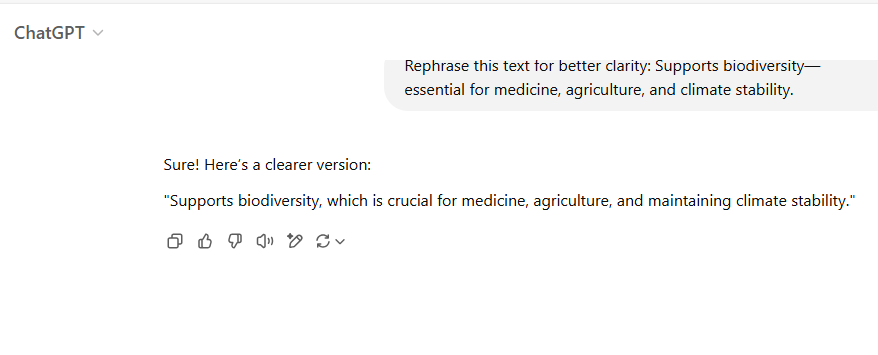
Ask ChatGPT to simplify or enhance wording: “Rephrase this text for better clarity: ‘Supports biodiversity — essential for medicine, agriculture, and climate stability.’”
Tip: You can also ask ChatGPT to summarize content or make it short and concise for better slide readability.
Example Output:
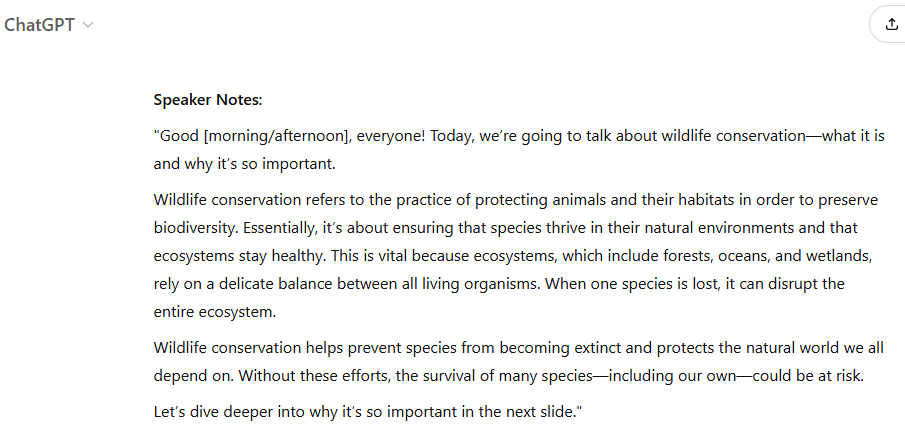
Step 5. Create Speaker Notes
ChatGPT can generate speaker notes by using prompts such as:
“Write speaker notes for Slide #1.”
Example Output:
Step 6. Design Slide Suggestions
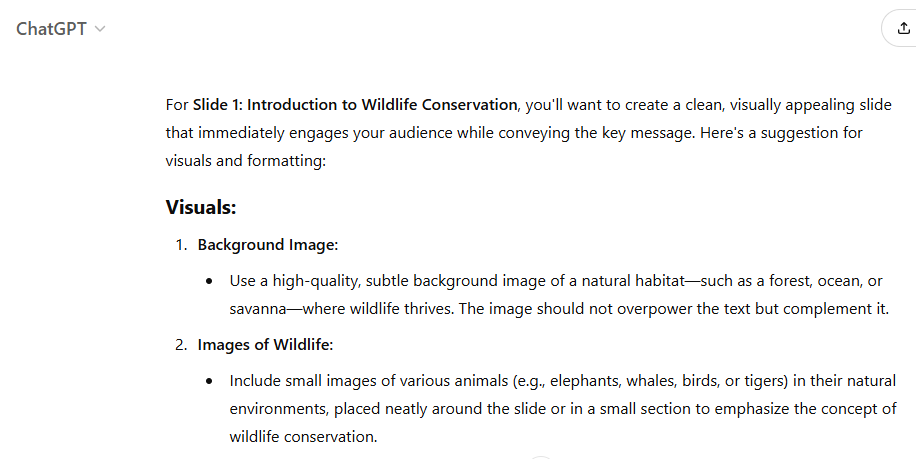
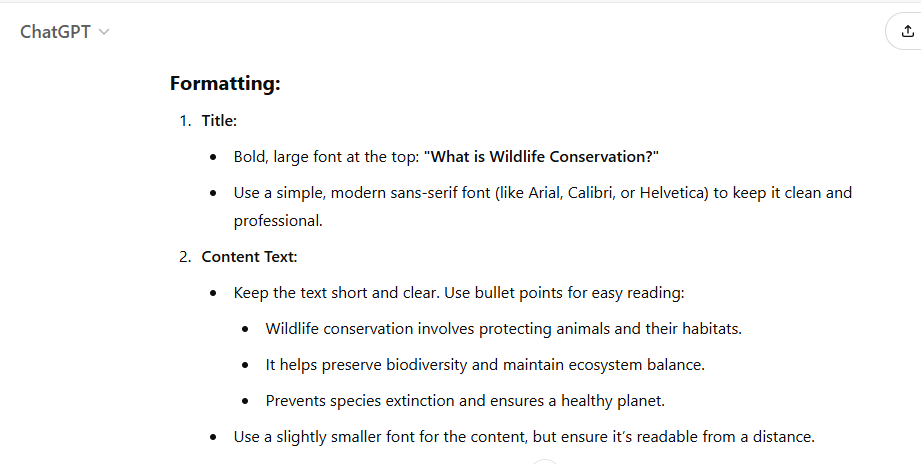
While ChatGPT doesn’t create visuals, it can suggest slide layouts which you implement afterward: “What visuals and formatting should I use for Slide #1?”
Example Output:
Using AI-powered tools can minimize the amount of manual design work required. You can also select a theme to ensure a cohesive look throughout your presentation.
Step 7. Review and Personalize
Edit AI-generated content to align with your personal style, brand, or company voice.
Example: If creating a business presentation, ensure formal language and add company-specific case studies.
Step 8. Proofreading
Use ChatGPT for a final check:
“Proofread and improve this presentation text: “Wildlife conservation refers to the practice of protecting animals and their habitats in order to preserve biodiversity.”
Example Output:
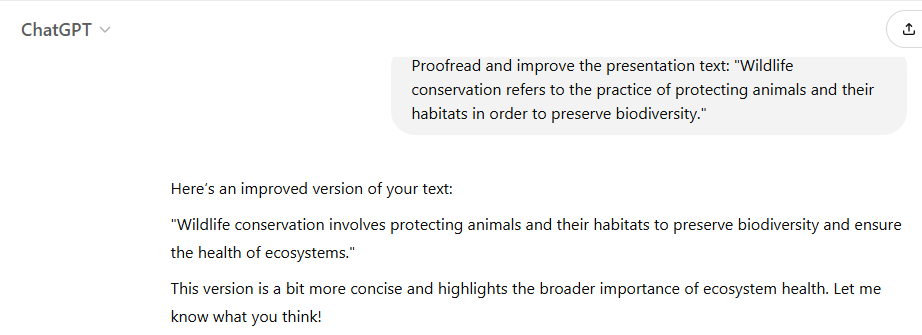
Afterward, proofread the presentation yourself one final time because ChatGPT is not a professional editor and can make mistakes, especially regarding the style.
Best Practices for ChatGPT
To maximize the benefits of ChatGPT as your AI presentation maker, it’s important to follow a few best practices. Start by clearly defining your topic and audience — this helps ChatGPT generate a relevant presentation outline and content that resonates with your listeners. Use specific prompts, such as “create a presentation outline on renewable energy with six slides,” to guide the AI and get focused results.
Don’t hesitate to refine your prompts or ask for revisions if the initial output doesn’t meet your expectations. Leverage ChatGPT’s ability to generate slides, speaker notes, and even full presentations, but always review and edit the content to ensure it aligns with your standards and objectives. By combining AI-generated content with your own expertise, you can create professional presentations that are both informative and engaging. Remember, the more you interact with ChatGPT and refine your prompts, the better your final presentation will be.
Tips for Effective Delivery
Creating a great presentation is only half the battle — delivering it effectively is just as crucial. To make a strong impression, focus on your tone, body language, and pacing throughout your presentation. Practice your delivery in advance, using the speaker notes generated by ChatGPT to help you emphasize key points and stay organized.
Engage your audience by making eye contact, using visuals to illustrate your ideas, and varying your tone to keep listeners interested. Don’t just read from your slides; instead, use them as a guide to support your message. Be prepared to answer questions and adapt to unexpected situations, ensuring your presentation remains smooth and professional. By focusing on these elements, you’ll deliver a presentation that not only informs but also inspires your audience.
Common Mistakes to Avoid
Even with the help of AI, there are some common pitfalls to watch out for when creating and delivering presentations. One major mistake is overloading your slides with too much text or data — keep your content concise and highlight only the key points. Avoid using generic templates or stock images that don’t add value; instead, use AI-generated visuals or customize your templates to reflect your brand and message.
Always proofread and edit your content to catch any errors that could undermine your professionalism. Make sure to save your presentation in a widely compatible format, such as PPTX, and bring a backup copy to avoid technical issues. By steering clear of these mistakes, you’ll ensure your presentation is polished, engaging, and effective for your audience.
Last Minute Checklist
Before you step up to present, it’s essential to run through a last-minute checklist to ensure everything is ready. Start by reviewing your presentation outline and slides to confirm all content is accurate and complete. Double-check that your speaker notes are generated and easily accessible. Make sure your presentation is saved in the correct format, such as PPT or Google Slides, and that you have a backup copy on hand.
Test your equipment — laptop, projector, and any other devices — to avoid technical hiccups. Take a moment to compose yourself, review your key points, and get into the right mindset to engage your audience. With the help of an AI presentation maker, you can simply type your prompt, let the tool do the rest, and focus on delivering an engaging presentation. By following this checklist, you’ll be well-prepared to present with confidence and make a lasting impact.
Challenges of Using Only ChatGPT
Although ChatGPT can have a substantial positive impact on your presentation, there are still challenges you should be aware of:
- Lack of Visual Design – ChatGPT is limited as a text-based tool and does not generate visual slides. This means users must manually format slides in PowerPoint or Google Slides, and need to download and organize their final presentation files themselves. However, we, at Wonderslide, can offer a solution here. Our AI-powered tool is not just a presentation enhancer, it’s a presentation creator. You simply upload your PowerPoint draft and let our AI do its magic, transforming your notes into a spectacular presentation.
- Generic Content – AI-generated content may lack originality and personal touch, requiring human refinement. Depending solely on ChatGPT can reduce creativity and critical thinking in presentation development.
- Factual Mistakes – AI-generated content may contain factual inaccuracies, so manual fact-checking is necessary.
- Context Limitations – ChatGPT may not fully understand niche or industry-specific nuances.
To Conclude
ChatGPT is a powerful tool for creating presentations efficiently, offering valuable support in content generation, structuring, and refinement.
Many AI presentation makers, including ours, offer free plans or features, making it easy to get started without any cost.
However, for the best results, it should be used as an assistant, rather than a complete solution. Combining AI-generated content with human creativity ensures a polished, engaging, and effective presentation.
If you use our presentation maker, you won’t need design expertise, just your creativity, to recognize the best version of the presentation.
By combining AI assistance with human expertise, you can ensure both efficiency and quality in your presentations.
Build your next deck in Wonderslide
Try it on your own deck. Upload a PDF, DOCX or PPTX and get a designed presentation in a few minutes. Free plan, no card required.