5 Ways, 3 Tested on the Same Document
Key takeaways
Of the three methods we could run on November 2, 2026, two kept all 45 table numbers. Slides from Outline dropped both tables entirely.
- Word’s Export to PowerPoint was missing in our test, and Microsoft says it’s being deprecated.
- Slides from Outline took about 10 seconds and kept headings and list items, but dropped both tables, the chart and all body text.
- Gemini in Google Slides kept all 45 table numbers but built 18 slides, and a text box hid two table rows.
- Wonderslide kept all 45 table numbers in 10 slides, but dropped section 9, and 2 slides came out as images you can’t edit.
- Copilot in PowerPoint wasn’t tested: our plan didn’t include it.
Yes, you can convert a Word document to PowerPoint, but most methods give you less than you’d hope. In our test on November 2, 2026, Word’s built-in Export to PowerPoint was gone, and Copilot wasn’t in our plan. Of the three methods we could run, two kept all 45 numbers from both tables. Slides from Outline dropped the tables entirely.
This guide is for you if you have a finished report, plan or set of notes in Word and need slides by tomorrow. For each method, you’ll see what it keeps, what it drops and how long it takes.
Wonderslide is our product. It builds a slide structure from your document and designs it with templates made by designers. You can keep the text as is or shorten it. We ran it through the same document and checks, on paid access rather than the Free plan. You’ll see what it got wrong, not just what it got right.
5 ways to convert Word to PowerPoint, compared
To save you time, we put all the results in one table first. The details for each method follow below.
| Method | What you need | What it carried over in our test | Slides from our doc | Editable PPTX | Price and limits | Time |
|---|---|---|---|---|---|---|
| Word for the web: Export to PowerPoint | Word for the web, text-only English document, not Safari | Not available: the option was missing | None | n/a | Free, but Microsoft is retiring it | n/a |
| PowerPoint: Slides from Outline | Desktop PowerPoint | Headings and list items, in exact document order. No tables, chart or body text | 38, including an empty first slide | Yes | Included with PowerPoint | About 10 seconds |
| Copilot in PowerPoint | Microsoft 365 plan with Copilot, file in OneDrive | Not tested: our plan didn’t include Copilot | Not tested | Yes | Microsoft 365 Personal, from $9.99 a month | Not tested |
| Gemini in Google Slides | Google AI Pro or eligible Workspace plan, desktop, English | Both tables with all numbers (2 rows hidden), chart as an image. Sections 1 to 9, appendices dropped | 18 | Yes, download from Slides | Google AI Pro, $19.99 a month | 5 min |
| Wonderslide | Browser, free account (we tested on paid access) | Both tables with all numbers, chart as an image. Sections 1 to 8 in order, section 9 and appendices dropped | 10 | Yes, $4.99 one-time, no subscription. 8 of 10 slides fully editable | Free: 3 decks a month, up to 10 slides, PDF only, non-commercial license. Prices vary by region | 6.3 min |
The test document: the same two sections in every method
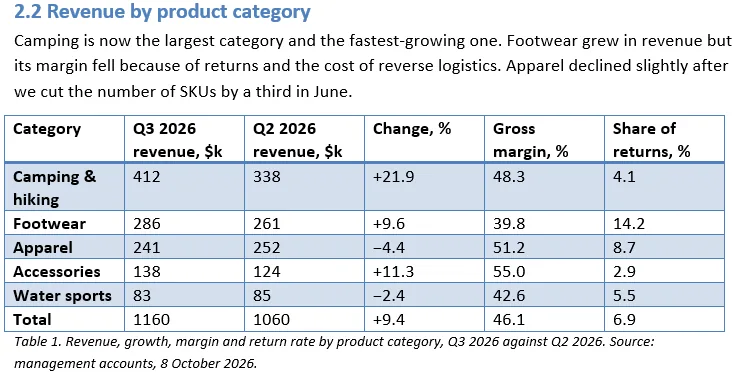
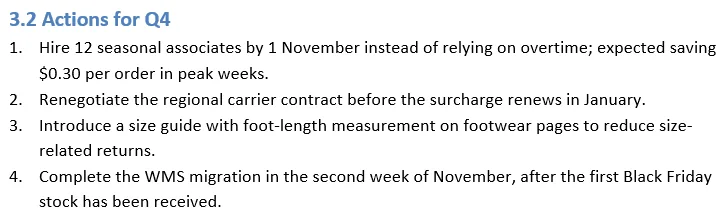
Our screenshots show the same two sections in every method: 2.2, a table, and 3.2, a numbered list.
Before you start: how to prepare your Word document
Every method reads your document’s structure, so five minutes of cleanup matters more than the choice of tool.
- Use heading styles. Heading 1 for sections, Heading 2 for subsections. Bold Normal text is not a heading.
- Keep paragraphs short. Two to four sentences make a clear bullet.
- Build tables with Insert > Table. Tab-aligned columns aren’t a table to a converter.
- Put images in line with text. Floating images and text boxes are often skipped.
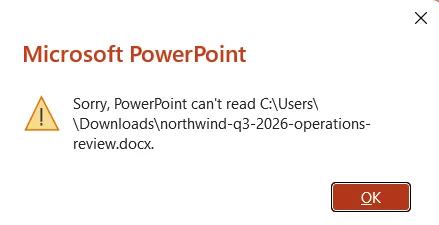
- Save as .docx and close the file. In our test, PowerPoint showed “Sorry, PowerPoint can’t read” until we closed the document in Word.
To check, open View > Outline in Word and look for levels.
Method 1: Export Word to PowerPoint in Word for the web
This was the built-in way to export Word to PowerPoint. Microsoft’s help page now says the option is being deprecated (Microsoft Support, checked on November 2, 2026). It only ever worked in Word for the web, with text-only English documents and outside Safari.
Steps (if your account still has the option)
- Upload your .docx to OneDrive and open it in Word for the web.
- Go to File > Export > Export to PowerPoint presentation.
- Pick a design theme and select Export.
- Select Open presentation when it’s ready. To get a local copy, go to File > Save as > Download a copy.
What our test found
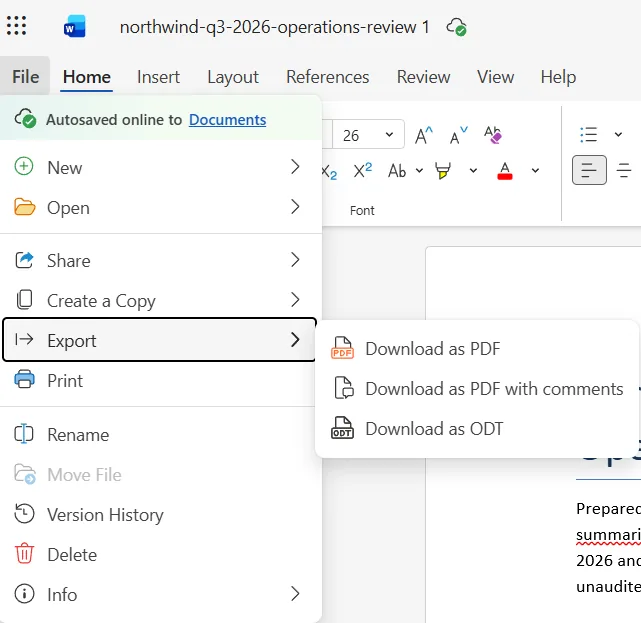
The option was gone. File > Export listed only Download as PDF, Download as PDF with comments and Download as ODT. We checked again after switching the interface to English, with the same result. Our test file has tables and a chart, so it isn’t text-only, and we can’t say whether that played a part.
Best for: a quick text-only draft, if you still see the option. If you don’t, use Method 2 or an AI tool.
Method 2: Make a PowerPoint from a Word document outline
This is the oldest way to turn an outline into slides, and it’s still in desktop PowerPoint for Windows and Mac. Each Heading 1 becomes a slide title and each Heading 2 becomes a bullet (Microsoft Support, checked on November 2, 2026).
How to turn an outline into slides
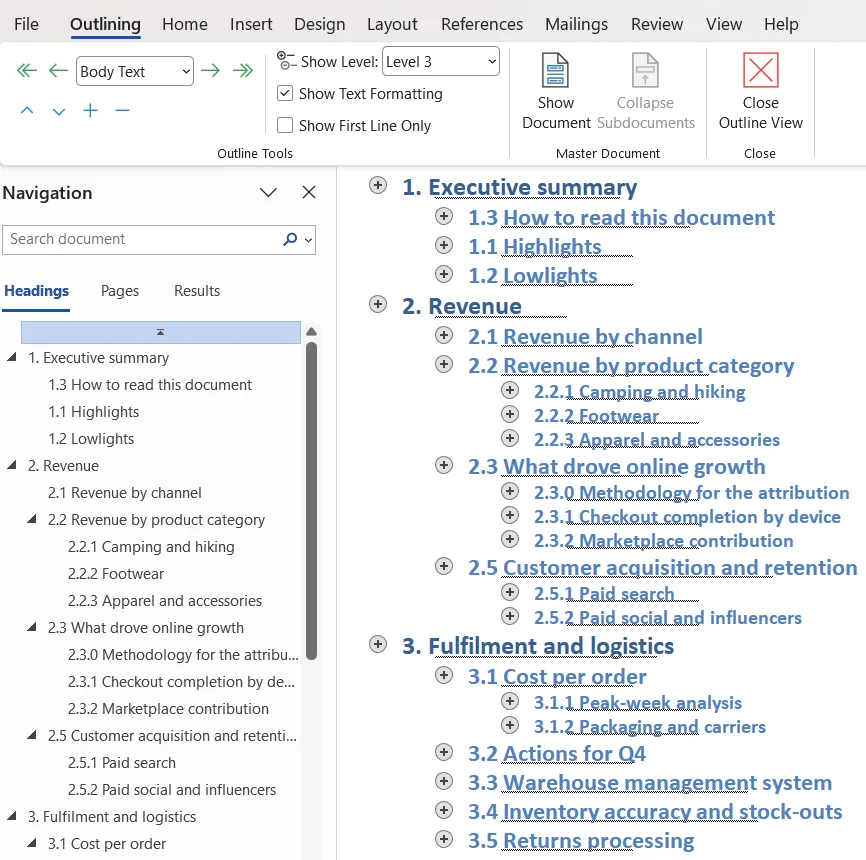
- In Word, open View > Outline, set Show Level to Level 3 and check that your headings show up as levels.
- Save the document and close Word.
- In PowerPoint, create a blank presentation.
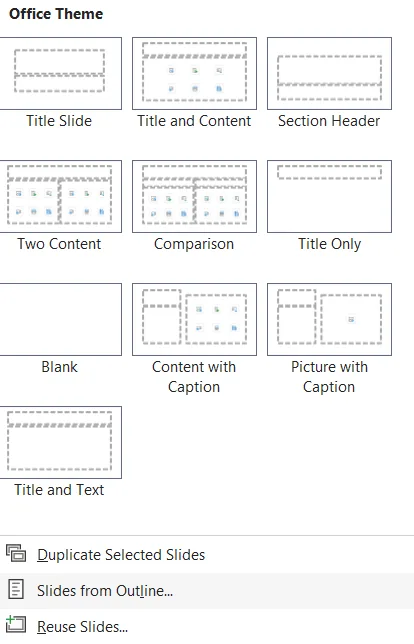
- Go to Home > New Slide > Slides from Outline, select your file and choose Insert.
- Delete the empty first slide and apply a theme from the Design tab.
On a Mac, save the document in Rich Text Format (.rtf) first. Then click the arrow next to New Slide on the Home tab and choose Outline.
What our test kept and lost
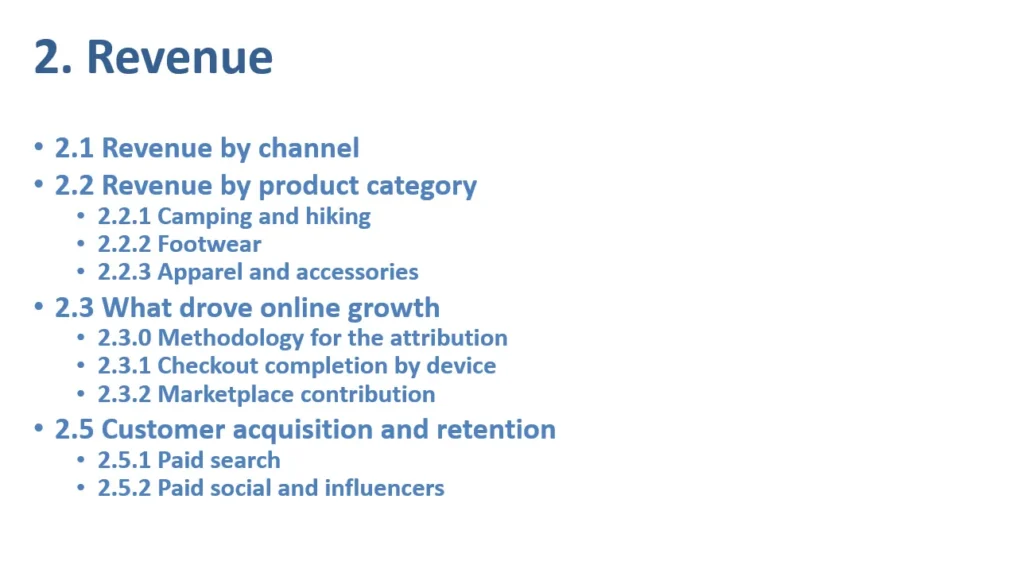
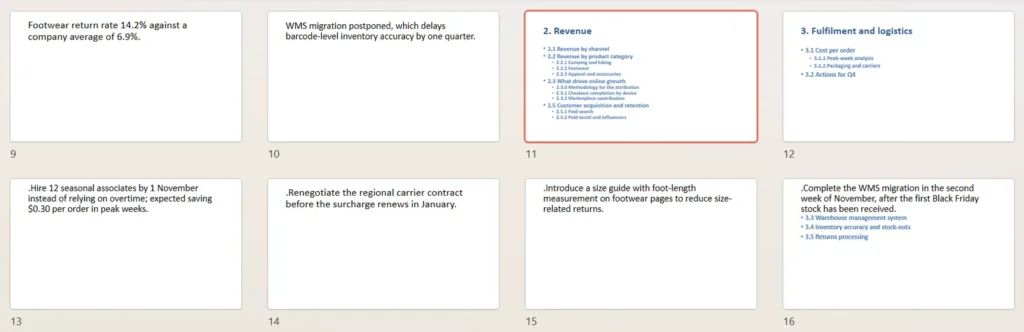
PowerPoint built 38 slides in about 10 seconds, including the empty first one. Every heading and list item came through in exact document order with its wording intact, though list numbers disappeared and a stray period appeared at the start of those slides.
Everything else stayed behind: both tables, the chart and all body text, including the $1.16 million revenue figure. Every list item became its own slide, so section 3.2’s four actions turned into four unnumbered slides.
Best for: documents you write as an outline from the start, such as a talk plan or meeting agenda.
Method 3: Create a presentation from a Word file with Copilot in PowerPoint
Copilot writes a new deck from your Word document, rewriting the text rather than copying it. We didn’t test it, because our Microsoft 365 plan didn’t include Copilot, so the steps follow Microsoft’s help page (Microsoft Support, checked on November 2, 2026).
Steps
- Start a new presentation in PowerPoint.
- Open Copilot Chat with the Copilot icon in the bottom-right corner.
- Attach your Word document and describe the deck, for example “10 slides for the leadership team, keep all figures from the tables.”
- Answer Copilot’s follow-up questions or skip them, then review the deck.
Best for: teams that already pay for Copilot and want a shorter deck rather than a slide-by-slide copy.
Method 4: Google Docs to Google Slides with Gemini
Google Docs has no direct export to Slides. The closest route is Gemini in Google Slides (Google Docs Editors Help, checked on November 2, 2026). You need Google AI Pro ($19.99 a month) or an eligible Workspace plan, on desktop, in English.
Steps
- Upload the .docx to Google Drive. Gemini reads it as is.
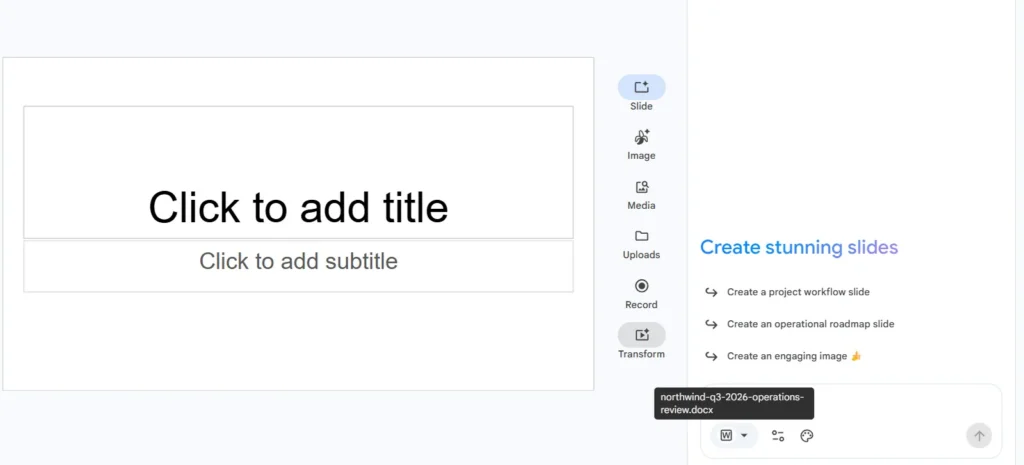
- Open Google Slides, start a blank presentation and click Ask Gemini in the top-right corner.
- In the Ask Gemini box, click +, choose your file from Drive and describe the deck you want.
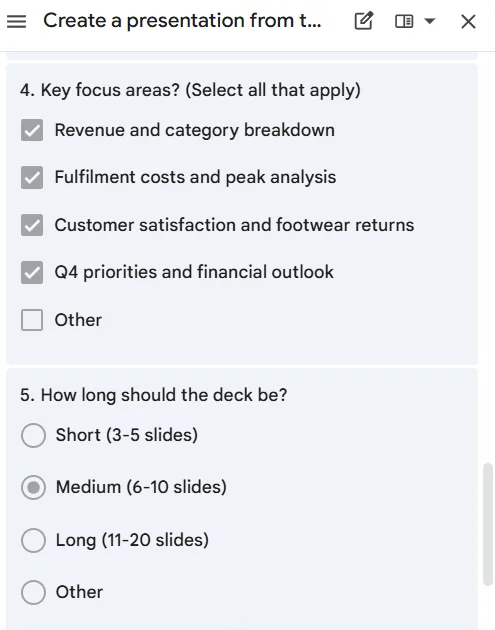
- Answer Gemini’s questions about focus areas and deck length.
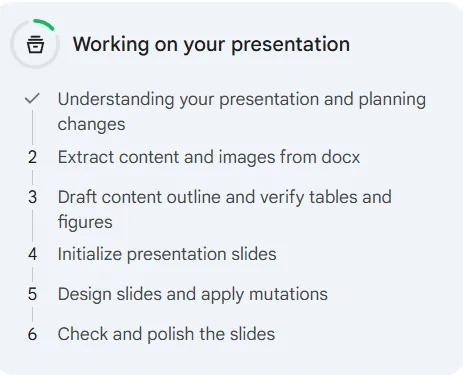
- Keep the tab open while Gemini works. Then go to File > Download > Microsoft PowerPoint (.pptx).
Google’s help page mentions approving a slide plan; in our test, Gemini skipped that step.
What our test kept and lost
Gemini’s default was 6 to 10 slides, but it built 18 in about 5 minutes. Both tables came through as editable tables with all 45 numbers, the summary kept all five headline figures, and the chart came in as an image.
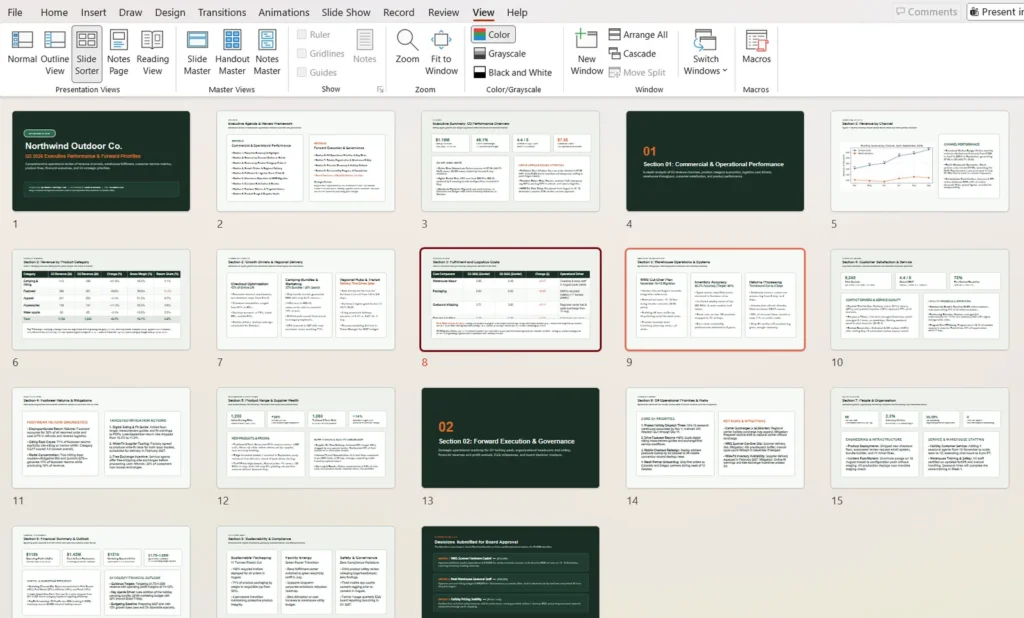
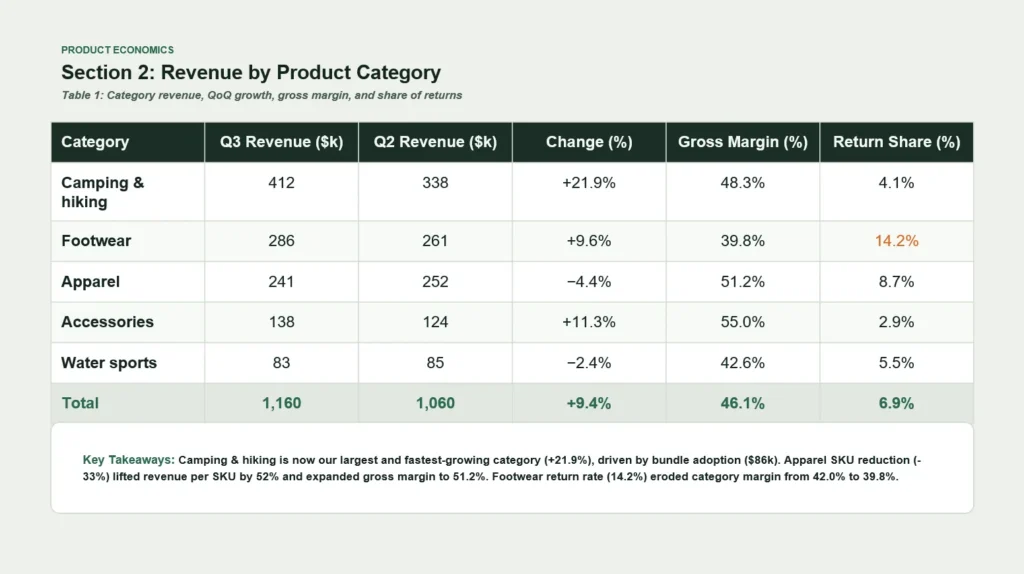
Gemini moved subsection 2.4 back into section 2 and turned 1.3, the reading guide, into an agenda slide at the start. It dropped both appendices and the 2027 budget priority, and it scattered section 3.2 across four slides.
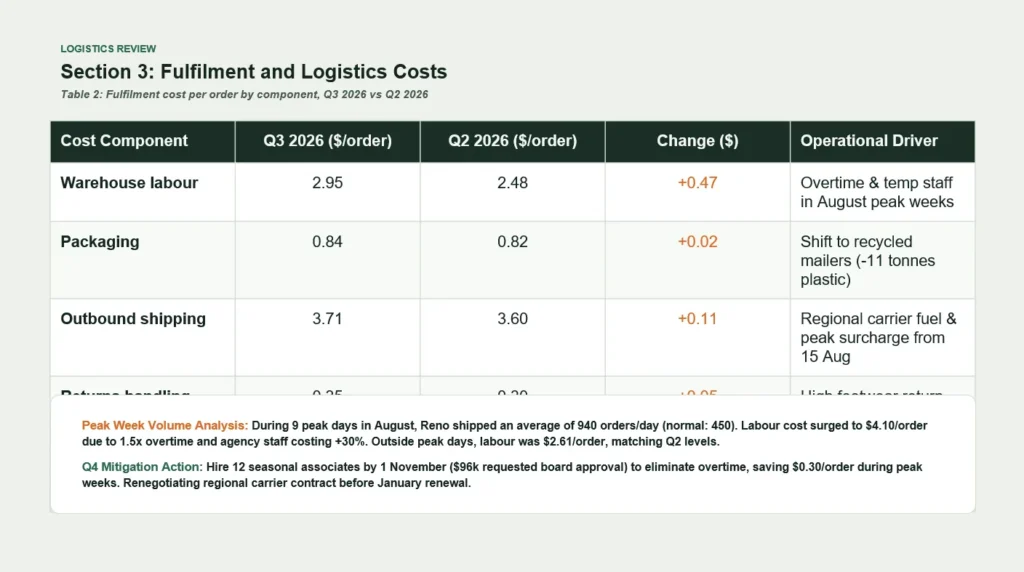
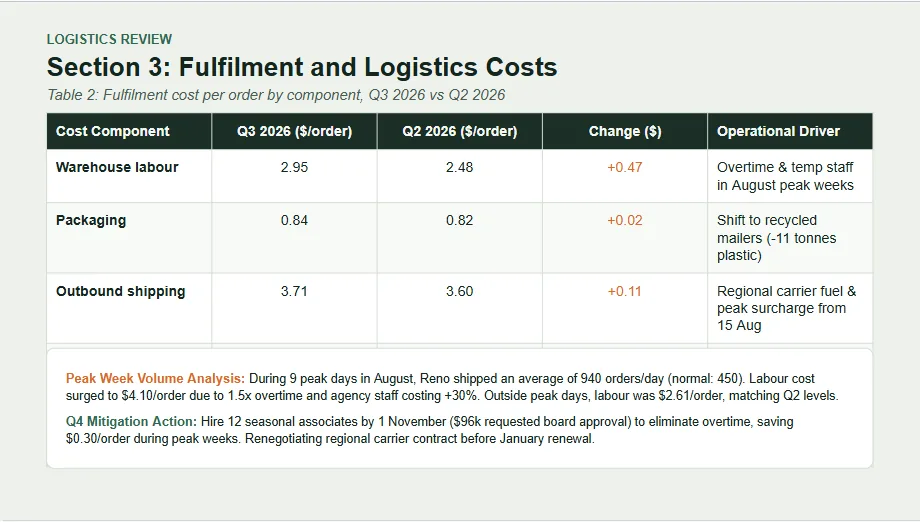
Two things needed fixing. On the Table 2 slide, a text box covered the last two rows, including the total, in Slides and in the PPTX. And the summaries added details that aren’t in the document: one slide says apparel’s margin “expanded” to 51.2%, and another adds a year to a February delivery date.

Best for: people who already work in Google Workspace and present from Google Slides.
Method 5: Convert DOCX to PPTX with Wonderslide
Wonderslide builds a slide structure from your document and lays it out in a style made by professional designers. You can keep your text as is or ask for a shorter version. You need a free account on Wonderslide. The Free plan downloads PDF under a non-commercial license; an editable PPTX is $4.99 one-time, no subscription (pricing). Our run used paid access, so a Free deck may differ from it.
Steps
- Sign up at wonderslide.com with Google or email.
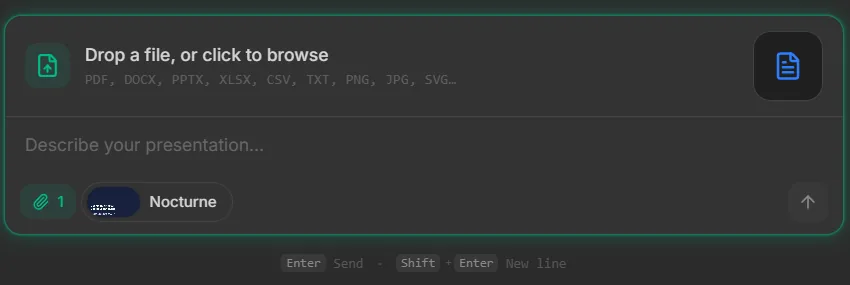
- In the prompt box, click Drop a file, or click to browse and upload your .docx.
- Pick a visual style under the prompt box, describe the deck you want and send it.
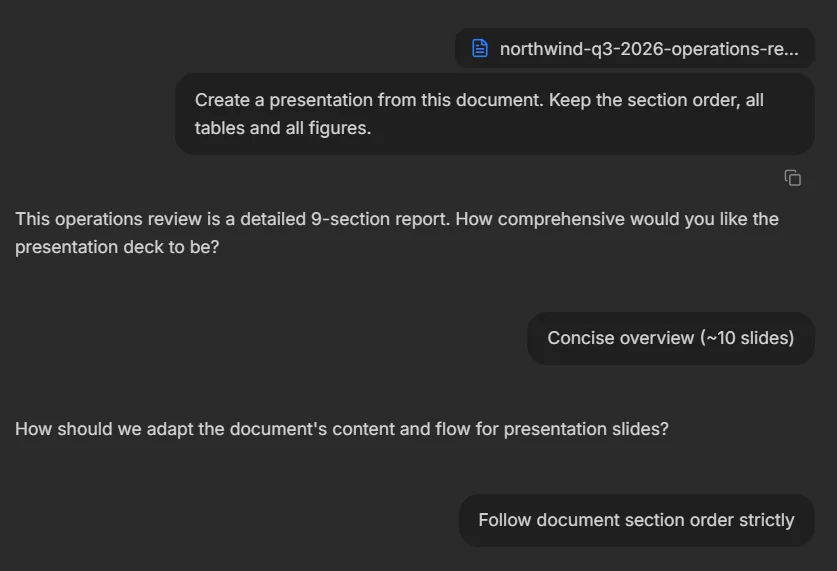
- Answer two questions: how long the deck should be and how closely to follow the document.
- Ask for changes in the chat, such as “make slide 3 shorter.”
- Download the deck as PDF or editable PPTX.
What our test kept and lost
We chose a concise deck of about 10 slides in strict document order. Wonderslide built 10 slides in 6.3 minutes. Both tables arrived as editable tables with all 45 numbers, and the summary slide kept all five headline figures. The chart came in as an image. Sections 1 to 8 kept their order, but section 9, the appendices and one action from section 3.2 were dropped. So were three items from section 6: retail partner onboarding, the 2027 budget and the risks.
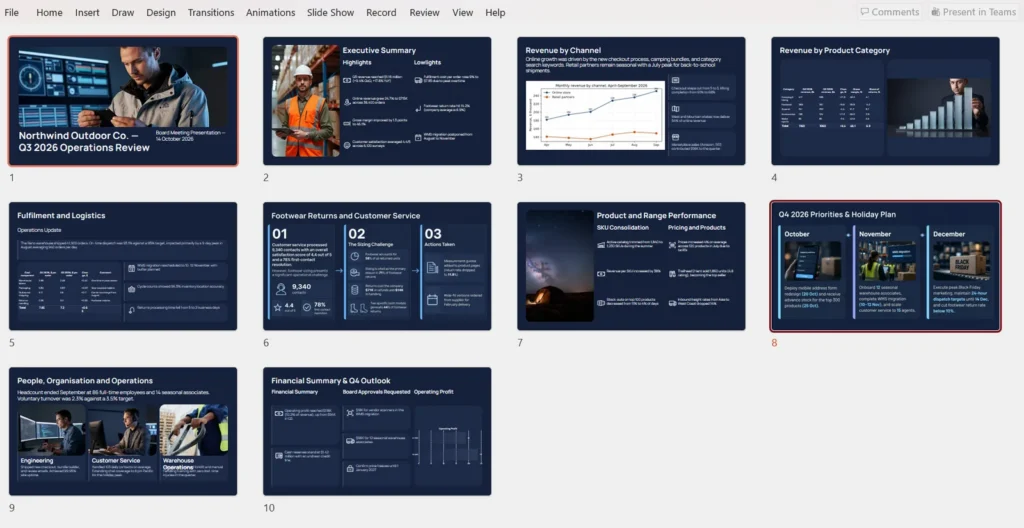
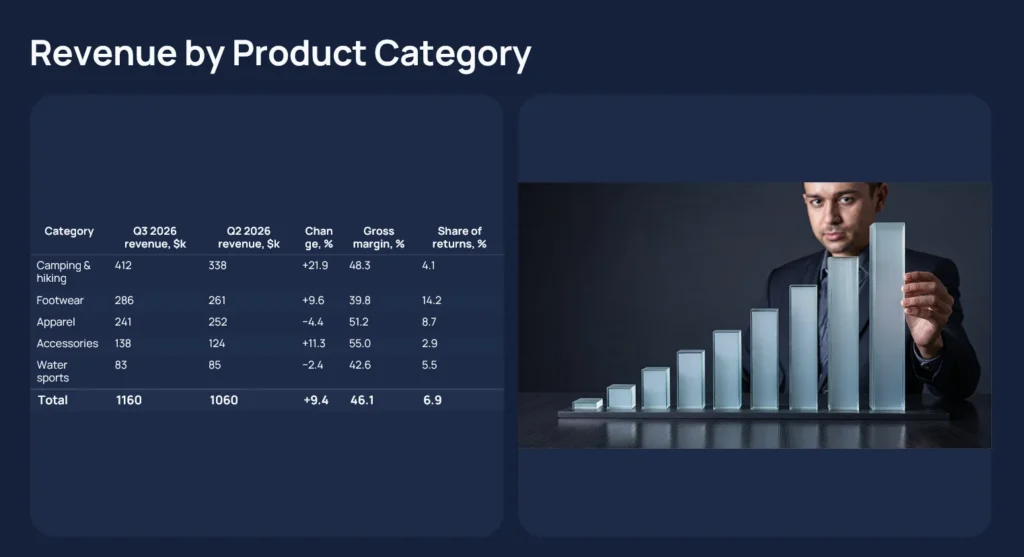
Two slides came out as full-slide infographic images: their numbers match the document, but you can’t edit their text. In both tables, the Change column was too narrow, so its header broke mid-word (“Chan ge, %”), and the Table 2 total split into “+0.6 5”. The Table 1 slide also got a decorative stock-style photo that takes up half the slide.

Our run took 6.3 minutes; Wonderslide says a deck takes about 2 minutes on average. An earlier run on October 29 went differently: 12 slides in about 1.5 minutes, with a table header row lost and the $1.16 million figure missing. Prices vary by region.
Best for: turning a long report into a designed deck of about 10 slides you can still edit in PowerPoint, Keynote or Google Slides.
What about free online DOCX to PPTX converters?
Most free converters turn each page into a slide. They’re free, but expect extra work: the slides look like document pages. We didn’t test one. For PDFs, see our review of PDF to PPT converters or the free PDF to PPT tool.
Which method to use
You need every word and number kept
No method did both. Slides from Outline copies text word for word but drops tables. Gemini and Wonderslide kept every table number but rewrite the text, so check their wording.
You need to cut a long report down to about 10 slides
Wonderslide gave us 10 slides when we asked for about 10. Gemini’s default was 6 to 10, but it built 18. Both summaries leave things out, so check what’s missing before you present.
You need a designed deck, not just text on slides
Outline import gives you plain slides. Gemini and Wonderslide produced finished layouts, each needing a few fixes. If you already have a deck that only needs a new look, see how to redesign an existing PowerPoint with AI.
You work only inside Microsoft 365 or Google
Stay in your suite: Copilot or Slides from Outline in Microsoft 365, Gemini in Google Workspace.
How we tested
Comparing tools on different files wouldn’t be fair, so every method got the same one: a 10-page quarterly report for a fictional retailer, with nine sections, two appendices, lists, two tables and a chart inserted as an image. Like many real reports, it has quirks. Two subsections (1.3 and 2.4) sit out of order, and numbered lists continue their numbering across sections. We left them in.
For each method, we checked the tables, the chart, the section order and 50 reference figures (45 from the tables, 5 from the summary, including $1.16 million in revenue), then opened every PPTX in PowerPoint.
The AI tools got one prompt: “Create a presentation from this document. Keep the section order, all tables and all figures.” Wonderslide asked two questions, and we chose about 10 slides in strict document order. Gemini asked five, and we kept its defaults, including a medium length of 6 to 10 slides. We ran each method once on November 2, 2026, and timed each run from upload to a finished deck.
Limitations
- One document, in English. A 40-page contract or a slide-ready outline may give different results.
- We didn’t test Copilot. Our Microsoft 365 plan didn’t include it.
- AI features change often. Gemini’s flow already differed from Google’s help page, and a second run can give a different deck.
- We ran each method once. Wonderslide’s earlier run on October 29 gave a different deck, with more errors.
- We didn’t test Wonderslide’s Free plan. Our run used paid access.
- We judged design ourselves. “Looks good” is our opinion, not a measurement.
- Wonderslide is our product. We used the same checks for it and listed its problems alongside the others.
Data and files
| File | What is inside | License |
|---|---|---|
| reference_numbers.csv | 50 reference figures from the test document: 45 table values (Table 1 and Table 2) and 5 from the executive summary, one row each, with source, section, row, column and value. | CC BY 4.0 |
| test_results.csv | One row per method (5 rows): tool and plan, test date, slides, time, how tables and the chart came out, figures and sections kept, editability and notes. | CC BY 4.0 |
Columns in reference_numbers.csv
- id: figure number, 1 to 50.
- source: Table 1, Table 2 or the executive summary paragraph.
- section: section of the test document.
- row, column: where the value sits in the table.
- value_in_document: the value as written in the document.
Columns in test_results.csv
- method, tool_and_plan, test_date: what was run, on which plan, and when.
- option_available, time_min, slides: whether the option existed, minutes to a finished deck and slides produced.
- table_1_format, table_2_format: how each table came out.
- table_1_values_kept_of_30, table_2_values_kept_of_15, exec_summary_values_kept_of_5, revenue_1_16M_kept: figures kept.
- figure_1, section_order, section_9_kept, appendix_a_b_kept, list_3_2_numbering: chart, structure and list results.
- pptx_opens_clean, text_editable: whether the PPTX opened without errors and the text could be edited.
- notes: observations from the run.
Sources
- Microsoft Support: Export Word documents to PowerPoint presentations (November 2026)
- Microsoft Support: Create a PowerPoint presentation from an outline (November 2026)
- Microsoft Support: Create a new presentation with Copilot in PowerPoint (November 2026)
- Microsoft: Copilot pricing plans for individuals (November 2026)
- Google Docs Editors Help: Generate presentations with Gemini in Google Slides (November 2026)
- Google: Google AI plans (November 2026)
- Wonderslide: Pricing (November 2026)
FAQ
Can Word convert to PowerPoint directly?
Not anymore, in our test. Word for the web had an Export to PowerPoint option, but Microsoft is retiring it, and on November 2, 2026, it was gone from our account. Desktop Word never had it. The built-in route left is in PowerPoint: Home > New Slide > Slides from Outline.
Why is Export to PowerPoint missing in my Word?
Most likely, Microsoft has already removed it as part of the retirement. In our test it was missing even with an English interface. It also never existed in desktop Word, and it only worked with text-only English documents outside Safari. Use Slides from Outline or an AI tool instead.
Does converting Word to PowerPoint keep tables?
It depends on the method. In our test, Slides from Outline dropped both tables. Gemini and Wonderslide rebuilt both as editable PowerPoint tables with every number, though Gemini hid two rows behind a text box and Wonderslide squeezed a column. Always compare the numbers with your source.
How do I convert Google Docs to Google Slides?
Google Docs has no direct export to Slides. With Google AI Pro or an eligible Workspace plan, open Google Slides, click Ask Gemini, then use + to attach your document from Drive. Gemini asks a few questions and builds an editable deck you can download as .pptx.
Can you convert a Word document to PowerPoint for free?
Yes, with limits. To turn Word into PPT for free, use Slides from Outline if you have desktop PowerPoint, but it skips tables and body text. Free online converters usually make one slide per page. Wonderslide’s Free plan gives you 3 complete decks a month as PDF, for non-commercial use.
Will the PowerPoint file be editable?
Mostly. Slides from Outline creates native PowerPoint slides, and Gemini’s deck downloads as .pptx with editable text and tables. Wonderslide exports an editable PPTX ($4.99 one-time), but in our test 2 of its 10 slides came out as full-slide images, so their text couldn’t be edited.